Adding Transitions
Last updated: February 26, 2026
Adding Transitions
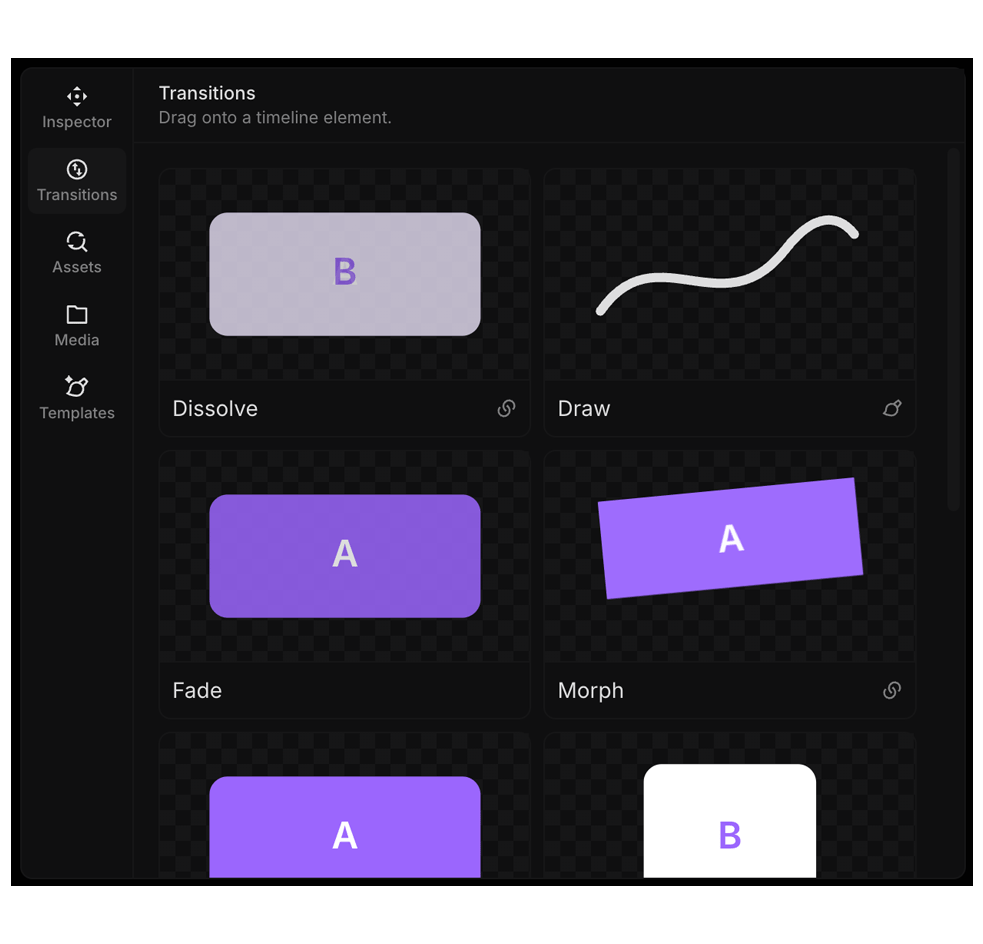
Transitions control how elements appear, disappear, or blend from one element to the next.
You can add them from the sidebar, from the context menu, and reposition them directly on the timeline.
Transition Types
In practice, you will work with three transition placements:
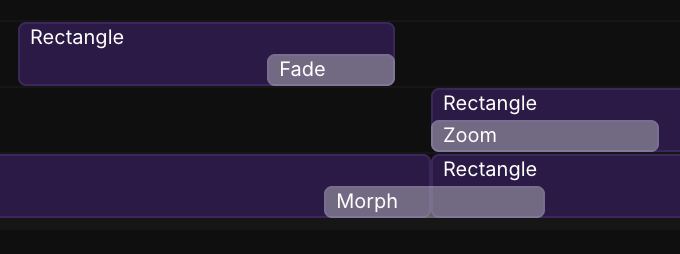
- Enter: transition at the start of an element (element is entering).
- Exit: transition at the end of an element (element is leaving).
- Between: transition connecting two adjacent elements. This is the two-element case and is centered on the boundary.
Transitions are element-specific: some only work as between transitions, and some only work on certain element types.
Quick mental model:
- Enter-only transitions are start-aligned.
- Exit-only transitions are end-aligned.
- Between transitions are center-aligned.
Two Ways to Add Transitions
1. Drag from the sidebar onto the timeline
This is the easiest visual way to place transitions exactly where you want them.
- Open the transitions list in the sidebar.
- Drag a transition onto a timeline element.
- Drop near the start or end of the element, depending on whether you want an enter or exit behavior.
FrameZero will show whether the drop is valid, so you can quickly see if that transition works in that spot.
2. Add from the right-click context menu
Right-click an element and choose:
- Transition In for the element's start edge.
- Transition Out for the element's end edge.
When you add from the menu, FrameZero first tries to make a transition between your selected element and the closest matching element next to it on the timeline.
- If that pairing works, you get a between (two-element) transition automatically.
- If not, FrameZero adds a single-element enter/exit transition when that transition supports it.
Moving Transitions on the Timeline
Transitions can be dragged on the timeline.
- Drag a transition to another valid edge/boundary to reattach it.
- Dragging across elements effectively replaces the old attachment with the new one.
- If you drop it back on the same node pairing, FrameZero treats it as a no-op.
You can also adjust transition length with timeline handles:
- Start-aligned transitions cannot drag the start edge.
- End-aligned transitions cannot drag the end edge.
- Center-aligned (between) transitions can be adjusted from both sides.