Add Content
Last updated: February 26, 2026
Add Content
Adding content is the core of editing in FrameZero. You start from the toolbar, place content directly on the canvas, and control timing from the timeline.
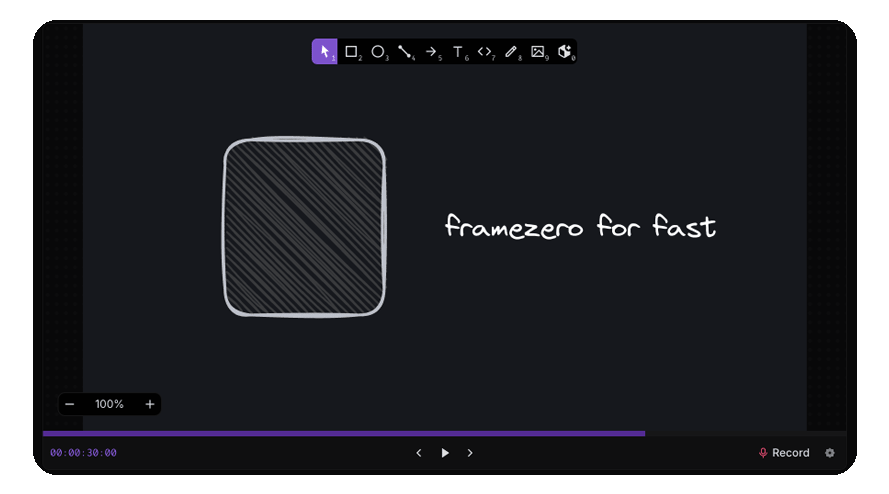
Think of this flow as three steps:
- Pick a tool from the toolbar.
- Add or draw the content on the canvas.
- Fine-tune timing, order, and style in timeline + inspector.
The Toolbar
The toolbar is where you choose what to add to the scene.
Common actions include:
- Add text and code blocks for titles, labels, and explanations.
- Add shapes and drawings for diagrams, highlights, and motion paths.
- Insert placeholders when final media is not ready yet.
- Open media-related flows for images, icons, GIFs, and audio.
For uploaded assets and audio workflows, go to Working with Media.
Drawing Onto the Screen
Drawing tools place content exactly where you interact on the canvas.
When drawing:
- Click and drag to create shapes or sketch strokes.
- Use short strokes for quick annotations and longer strokes for diagram structure.
- Use inspector controls after drawing to refine size, color, stroke, and position.
- Use context menu and copy/paste when duplicating recurring visual patterns.
A practical workflow is to rough in content quickly, then polish in passes (layout first, styling second, timing last).
Quick Edits via Right Click
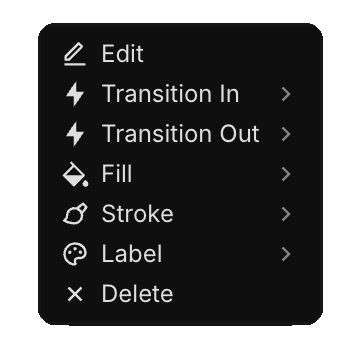
Right-click any element on the canvas to open a context menu with quick actions.
- Edit: opens the inspector panel for the selected element.
- Transition In / Transition Out: quickly add entrance or exit transitions from the element itself.
- Element-specific actions: options change based on what is selected. For example, shape elements may show actions like Fill and Stroke.
- Delete: remove the selected element immediately.
Use this menu for fast per-element adjustments while staying focused on the canvas.
How Content Gets Added to Timeline + Layers
When you add content, FrameZero places it in timeline and layering automatically.
Default behavior:
- The item is added at the current playhead time.
- Its duration extends to the end of the current section/scene.
- It is placed on the first available layer at that time range.
In practice, this means you can keep adding items quickly without manually creating tracks each time. If needed, you can still move and trim items later.
Important Behaviors to Know
- Content lives inside a section: if your playhead is inside a section, new content is created there.
- Timing follows section bounds: items are clipped by section boundaries when needed.
- Layer order controls visibility: top layers visually cover lower layers when overlapping.
Recommended Editing Loop
- Block in structure with text, shapes, and placeholders.
- Draw annotations and supporting visuals.
- Adjust timing in the timeline.
- Reorder layers to resolve overlap.
- Replace placeholders with final assets.
This loop keeps momentum high while still giving you precise control before export.