Working with Media
Last updated: February 26, 2026
Working with Media
Media in FrameZero is straightforward: bring in visuals and audio quickly, organize where assets live, and reuse what matters across projects.
- Copy and paste images.
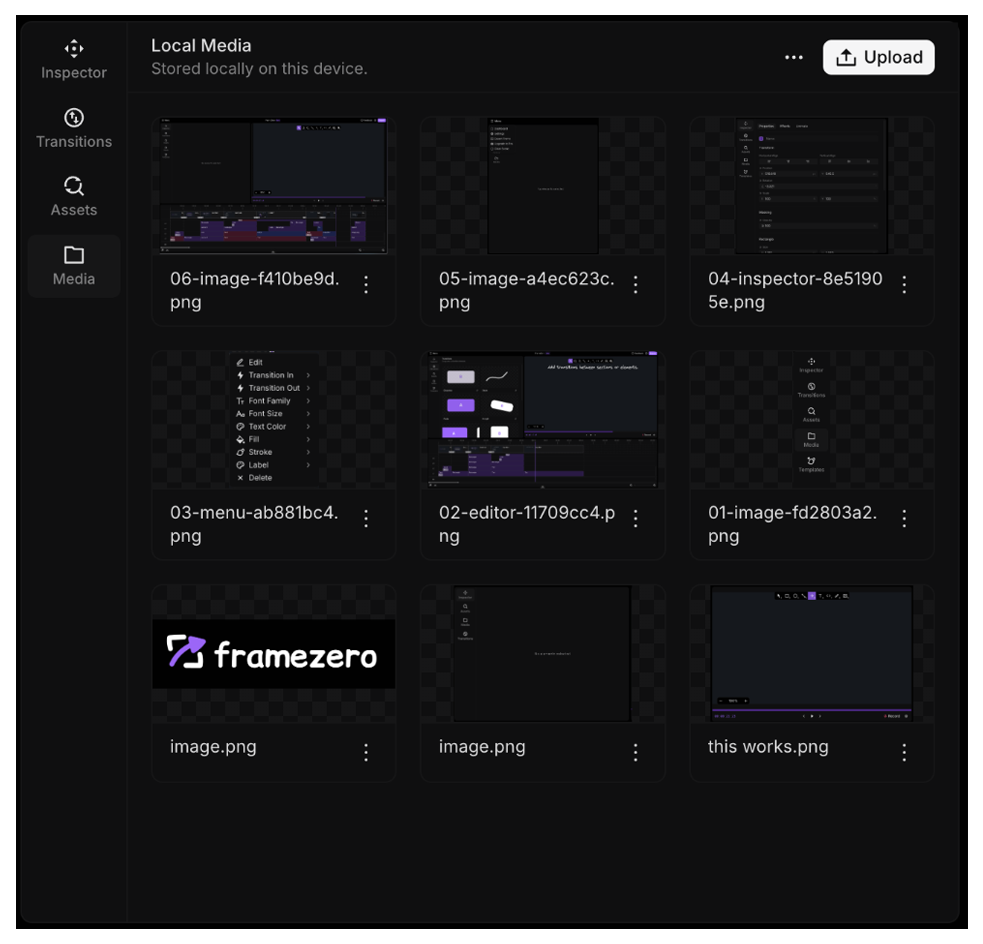
- Project media is limited to the current project, but the media library (Pro) allows you to reuse assets across scenes.
- You can quickly drag media from the sidebar onto the timeline or canvas.
Add Images with Copy and Paste
This is the fastest way to bring in an image. If it is on your clipboard, just paste it directly into FrameZero. This will add it at the current frame.
Add Icons, GIFs, and Media from the Sidebar
You can also add assets directly from the media/sidebar panel.
Ways to add:
- Drag an icon, GIF, or media item from the sidebar onto the canvas to place it visually.
- Drag an item from the sidebar onto the timeline to add it at a specific time.
- Double-click an item in the sidebar to add it automatically.
Add Audio with the Record Tool
Use the built-in record tool when you want a quick voiceover without leaving the editor.
- Open media/audio controls.
- Select Record.
- Choose your microphone input if prompted.
- Start recording, then stop when finished.
Import Media Files
Project media is not limited to audio. You can import images, GIFs, audio, and other supported media files into the current project.
- Open media/audio controls.
- Choose Import.
- Select your file.
- Wait for processing to complete.
- Add the imported media to your canvas or timeline.
Project Media vs Account Media
FrameZero separates media into two scopes:
- Project media: assets available only inside the current project.
- Account media: assets stored for reuse across multiple projects in your account.
Rule of thumb:
- Use project media for one-off assets.
- Use account media for reusable brand assets, recurring voiceovers, and shared media you expect to use again.
Promote Media from Project to Account
If you imported something into project media and later decide it should be reusable, promote it.
- Find the asset in project media.
- Open its actions menu.
- Select Promote to Account (or equivalent promote action).
- Confirm.
Expected result:
- The asset is now available in account media and can be added to other projects.
Important Note About Removing Account Media
To remove an item from account media, it must not be in use by any active project.
If removal is blocked:
- Find projects currently using that media.
- Remove or replace the media from those active projects.
- Return to account media and try deletion again.
This prevents broken references in projects that still depend on that asset.